AI Image Generator — Image to Anime
Use Image to Anime for AI image generation, reference image editing, restyling, and refinement. Switch to AI Video Generator when you want to animate a still image.
AI tools inside Image to Anime
AI image editing tools for focused visual tasks.
Move from Image to Anime and Image to Sketch to GIF background removal and AI photo enhancement, with one consistent image editing, result, and download flow across Image to Anime.
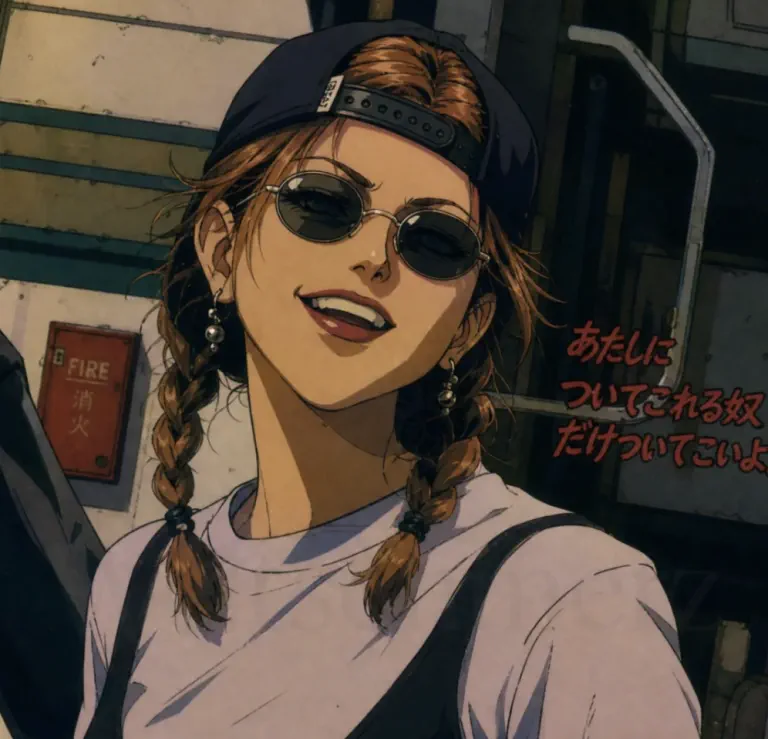 AnimeImage to AnimeTurn a photo or illustration into anime art with focused visual styles.
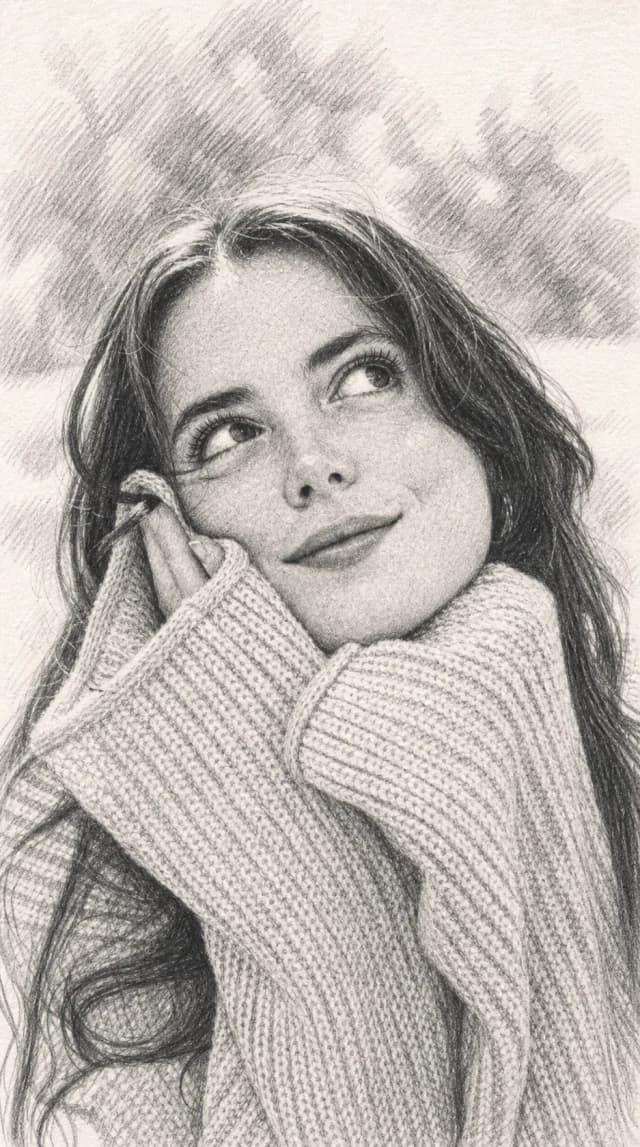 SketchImage to SketchConvert one image into a detailed monochrome graphite drawing.
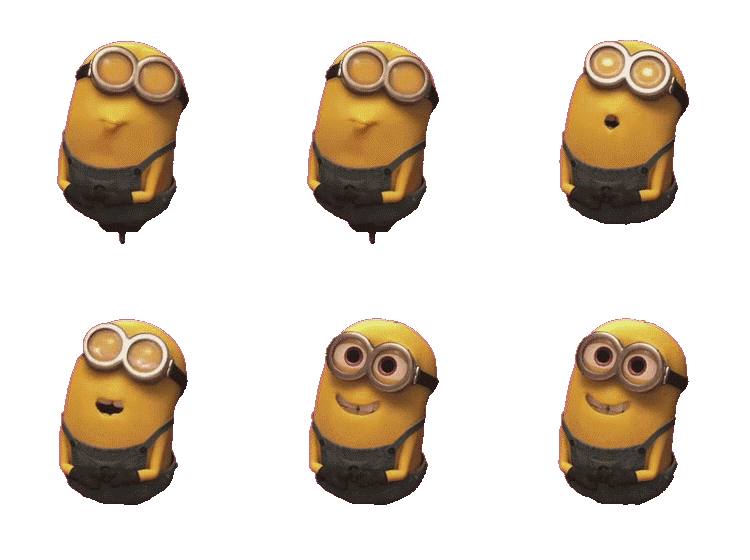 GIFGIF Background RemoverRemove a GIF background while keeping the full animated loop intact.
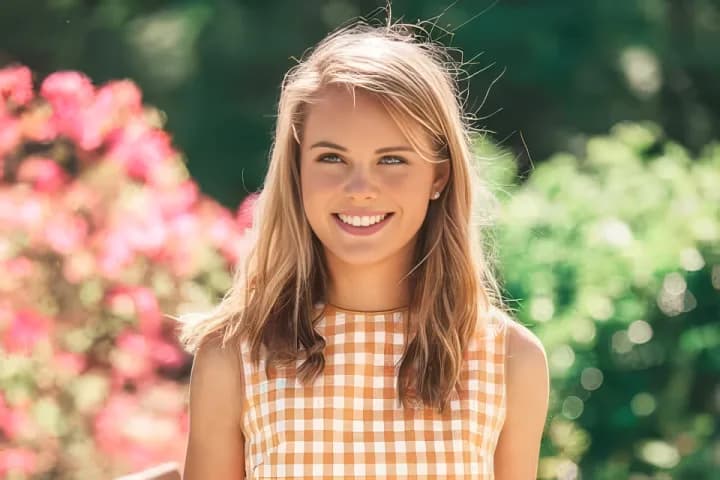 EnhanceAI EnhancerUpscale soft images and recover cleaner detail, contrast, and texture.
AI image editing workspace
Create, edit, and refine images with an AI image editor.
Image to Anime brings AI image generation, reference image editing, visual refinement, and AI video generation into one focused workspace. Start from a text prompt or upload a source image to control the subject, composition, style, and detail for portraits, product visuals, campaign concepts, social content, and short videos.
Use the same AI image editing workflow to move from prompt or reference to generation, review, download, and saved assets. Creators, designers, and marketing teams can compare image edits, organize results, and refine a visual direction without rebuilding their process.
Made with Image to Anime
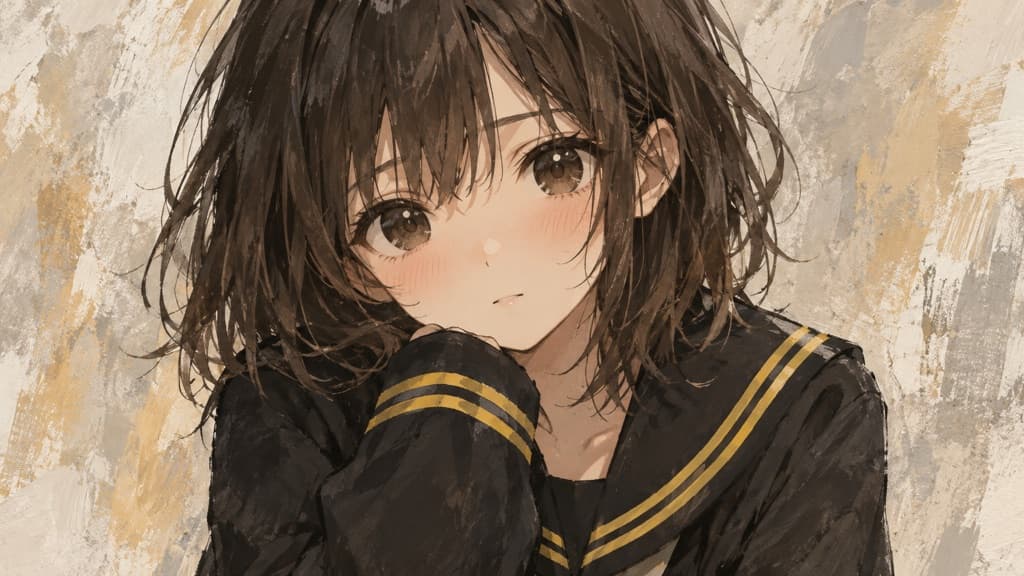
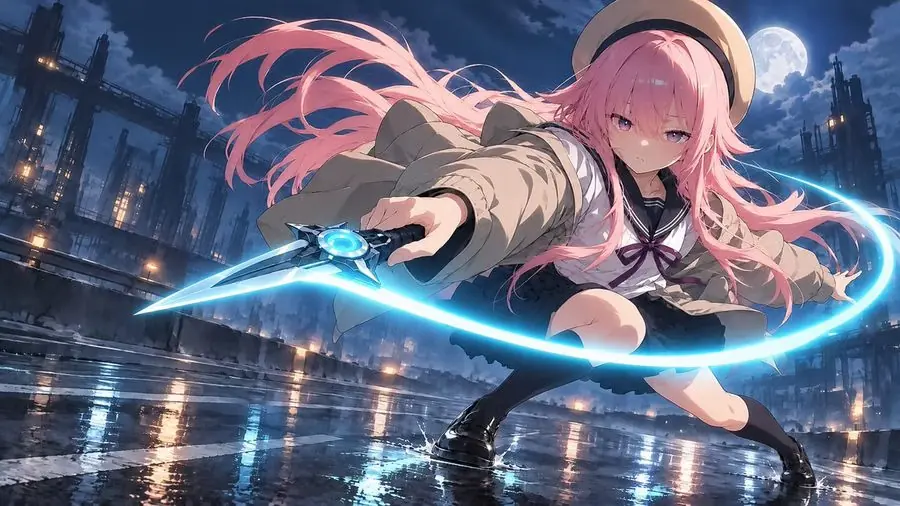
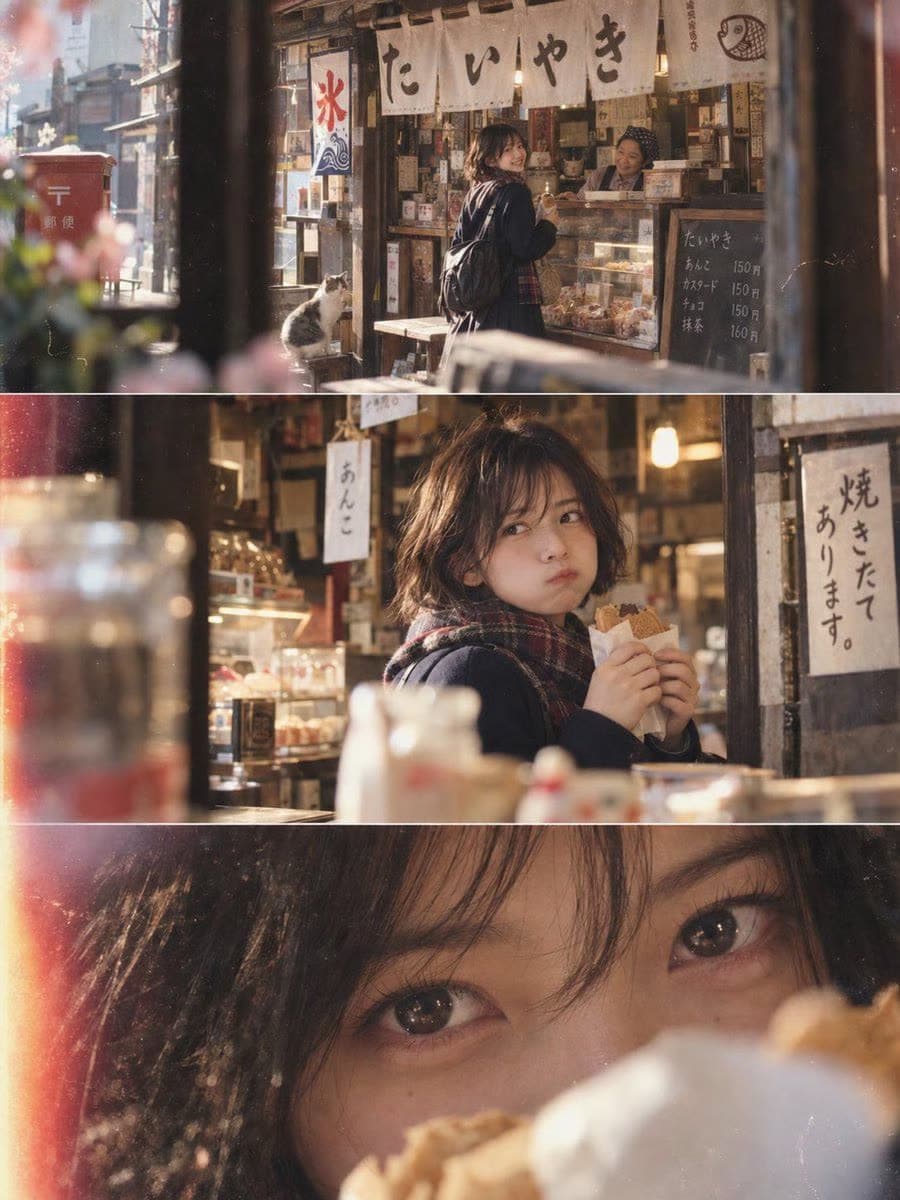
AI image editing and generation directions.
Explore composition, style, detail, and motion directions across the Omni AI Image Editor and Video Generator workflows.
AI Image Generator examples
AI Video Generator examples
The AI image editing workflow
Generate and edit images in one Image to Anime workspace.
Move from image generation to reference image editing, then switch to video generation when you need motion, without rebuilding your setup.
01Choose image editing or video mode
Use the AI image editor to generate or modify still visuals, or switch to video mode for motion.
02Add a prompt or source image
Describe the image edit, upload an optional source image, and choose the model and format.
03Generate, review, and continue editing
Review the result, adjust the AI image editing direction, and create the next variation.
Image to Anime use cases
Choose the right AI image editing workflow for each visual task.
A single creative project may need image generation, video generation, reference-based editing, and quick image cleanup. These paths take you directly to the workflow that best matches the result you need.
Build key visuals with the AI Image Generator
Generate portraits, product images, anime illustrations, concept art, and social media assets from a text prompt or reference image. Define the subject, composition, and aspect ratio first, then refine style, lighting, and detail until the image is ready for editing or publishing.
Create motion with the AI Video Generator
Turn a written idea or still image into a short AI video by describing subject movement, camera direction, pacing, and atmosphere. Use the video generator for product motion, character clips, visual stories, social videos, and early creative concepts.
Transform a reference while keeping its visual identity
Upload an existing photo or illustration and explore anime, sketch, and other visual directions while preserving the subject, pose, and main composition. A reference-based workflow reduces the need to describe everything from scratch and makes related variations easier to create.
Finish delivery details with dedicated AI image tools
Once the creative direction is approved, recover clearer detail with AI Photo Enhancer or prepare transparent animated assets with GIF Background Remover. Focused tools are useful for ecommerce images, profile pictures, reaction GIFs, and visual assets that need a final cleanup before publishing.
 One frame, countless directions
AI Image Editor & Video Generator
One AI image editor.
Two creative modes.
Image to Anime combines prompt-based image generation, reference image editing, image refinement, and AI video generation in one focused workspace.
- AI Image Editor for prompts, source image edits, and refinements
- AI Video Generator for text and image-to-video
- One My Assets library for finished results
A few useful answers
AI image editor questions about Image to Anime.
Learn how AI image editing, image generation, reference images, and video generation work together in Image to Anime.
Start editing images with Image to Anime.
Generate, edit, and refine images, then manage each result or continue into video in one workspace.